Showing posts with label FIM/ILM/MIIS. Show all posts

Tuesday, November 20, 2012

FIM 2010 R2 High CPU with Mmsscrpt.exe

I recently had issue in which mmsscrpt.exe would peg one CPU and hang indefinitely during an sync to the FIM Service MA.  My environment is a single Windows Server 2008 R2 box.  My run sequences consisted of delta imports and delta sync to my two data MAs (SQL and AD) and to the FIM service.  These were followed by an export and a delta import delta sync to the same MAs.  All was fine until the final delta import and delta sync ran.  When it did mmsscrpt.exe jumped to consume one thread and the runs effectively stopped.

Also, a run of full imports and full syncs on all MAs did not show the problem, it was only when the exports were introduced.

In an effort to fix it, I upgraded my FIM 2010 R2 from RTM (4.1.2273.0) to Hotfix Rollup 1 (4.1.2548.0) – no change.

I found a similar issue on the FIM Forum, but it was caused by a .Net Framework bug.  I already had all of the current updates, so those hotfixes were not relevant to me.  However, it was mentioned in there that turning off Exchange 2010 provisioning caused the issue to go away.  The same was true for me, which was the light bulb moment – PowerShell.

In my environment I had deployed the Windows Management Framework 3.0 (PowerShell 3.0, WMI, & WinRM) so that I could use Server 2012’s Server Manager with the older operating systems.  I figured PowerShell 3.0 was breaking something with the remote PowerShell call done when provisioning Exchange, so I went to remove WMF 3.0.  In doing so, I noticed that I apparently had deployed the WMF 3.0 BETA.  I removed it, rebooted, and the issue was gone.

Finally, after realizing it was a beta, I download the current installer for WMF 3.0 (RTM) and installed it.  After another reboot, the issue did not return.

So, the bottom line is that the WMF 3.0 Beta is incompatible with FIM 2010 R2 (not tested with FIM 2010, but I’d be willing to bet it causes issues there too).

Thursday, September 01, 2011

FIM 2010 R2 Beta: Changing the Web Based Password Reset Page After Install

First post on FIM 2010 R2 Beta…

FIM 2010 R2 provides a new based password reset option.  For more info on the feature, check out Anthony Ho’s post.

When you install the new Web Based Password Registration and Reset applications (web sites), you are asked if the site is an extranet site or not.  Specifying it as extranet tells FIM to present the additional QA Gate for added security.  However it isn’t readily apparent how to change it after install.  You can uninstall it and re-install it, but the reinstall forces you to go through the entire install for the FIM Service, Portal, etc.  Turns out there is an easier way.

Simply edit the web.config file for the application, which (by default) you can find at:

C:\Program Files\Microsoft Forefront Identity Manager\2010\Password Registration Portal

or

C:\Program Files\Microsoft Forefront Identity Manager\2010\Password Reset Portal

Edit the web.config file by changing this line:

<add key="SecurityContextAssertion" value="Extranet" />

Valid values are “Extranet” or “NoneSpecified”.

I had no problems editing this line and getting the change to take effect for the Reset page, but with the registration page, I continually got the Extranet QA Gate to answer.  I suspect that’s by design as I need to answer the questions for both QA Gates so that I am ready to reset from either option.

Monday, July 18, 2011

FIM 2010 UnicodePwd Issue on New AD User Creation

UPDATE 2010.08.17 – Ultimately, 2008 SP1 did not resolve the issue in this case.  We ended up enabling Password Policy Enforcement in FIM 2010 SSPR.  This change alters how FIM connects to AD to make password changes on new user creation, password sync, and password reset operations.  Instead of Kerberos, it uses LDAPS to the domain controller.  Together with a hotfix for the AD MA used, it now enforces the full AD password policy (including password history).

----

Now this was a an odd one. I am working on a pretty basic FIM deployment and got to the point of provisioning users into Active Directory. I set up all of my attribute flows in Outbound Sync Rules and set up my workflows and MPRs accordingly. At this point, I was flowing a static string value to unicodePwd – one that did meet the password requirements of the domain – and it was configured for “Initial Flow Only”. The user gets created in Active Directory, but I was getting a “Cd-Error” in FIM with no real detail, other than the fact that userAccountControl was not being updated to 512 (for an enabled, regular user).  No errors in the event logs on the FIM Sync server or the target domain controller.  Using the account used by my AD MA, I opened ADUC and tried to enable the user.  No luck.  I got the error message about the password not meeting the policy requirements.  I could however manually set the password to the value I was flowing from FIM, and then I could enable the user.  So that told me it wasn’t an AD rights issue, and that for some reason FIM wasn’t flowing the password to the new user at all.

After looking into all of the more common Kerberos issues (time sync, firewalls, DNS name resolution, etc.) I used Wireshark to capture the network traffic on the FIM Sync server during the export to AD.  The capture showed that the KPASSWD command was failing with “KRB5KDC_ERR_S_PRINCIPAL_UNKNOWN”.

image

The details of the error showed that the DC could not locate the SPN “kadmin/changepw”.

image

But, running “setspn –Q kadmin/changepw” returned the correct AD account, “krbtgt”, without issue.  A little bit of searching led me to this KB article, which mentions an issue with “kadmin/changepw” when the “krbtgt” account was authoritatively restored in the past.  Though I didn’t catch it right away, it even says that this would cause an issue with ILM setting passwords on newly provisioned accounts.

So, I ran “repadmin.exe /showobjmeta DC1 cn=krbtgt,cn=users,dc=domain,dc=com” and lo and behold, the “krbtgt” account had been authoritatively restored in 2008.  A sample of the output is below.  Note the highlighted attribute versions that have been increased by 100,000.


Loc.USN                           Originating DSA  Org.USN  Org.Time/Date        Ver Attribute

=======                           =============== ========= =============        === =========

  14299      aa8e4db6-7d0e-45ae-95e9-82db0e59a327  34567640 2008-08-19 03:02:35 100001 objectClass

  14299               Default-First-Site-Name\DC1     14299 2010-12-04 18:12:51      1 cn

  14299      aa8e4db6-7d0e-45ae-95e9-82db0e59a327  34567640 2008-08-19 03:02:35 100002 description

  14299      aa8e4db6-7d0e-45ae-95e9-82db0e59a327  34567640 2008-08-19 03:02:35 100001 instanceType

  14299      2f2a1f4c-eac1-404a-b305-37fd2e28eddf      1479 2002-03-13 20:27:04      1 whenCreated

So, the hotfix from the KB article was installed on the DCs, and the issue was resolved.  The hotfix is included in Server 2008 R2 SP1, so definitely go that route if you can.  New users provision with the proper password and are properly enabled on creation.  Hopefully you don’t run into this issue, but if you do, I hope this eases your pain.

Tuesday, July 13, 2010

FIM 2010 RTM Update 1

The update isn’t new, but it’s not easy to find the direct link to download Update 1 for FIM 2010, so here it is:

http://catalog.update.microsoft.com/v7/site/Search.aspx?q=KB978864

Keep it handy for offline labs or sites where automatic updates are managed through policy.  More information on the update itself can be found here.

As a side note, if SQL is not on the FIM server, you will need to install the SQL 2008 Native Client before installing Update 1.  You can find the client download link here.

Altering CRL Checking Behavior

A great TechNet Wiki on how various applications use CRL checking, and how to alter the behavior if needed:

http://social.technet.microsoft.com/wiki/contents/articles/certificate-revocation-list-crl-verification-an-application-choice.aspx

It has lots more, but the apps I seem to run into CRL checking issues the most are SCCM, UAG, TMG, and FIM.

Monday, January 11, 2010

IIS7 Loopback Issue and the FIM Portal

This issue is nothing new, but it did bite me when setting up a FIM 2010 RC1 portal under a custom URL, so I thought I would share.  When accessing the FIM portal from another server or workstation, integrated authentication worked fine, but when accessing it from the FIM server itself, you were prompted for authentication 3 times, and then ultimately denied.  With security auditing enabled, a logon failure was shown in the Event Log (see below).  From there, I came across this blog post which discusses an IIS change introduced in Server 2003 SP2 (aka the IIS loopback issue).  That post also mentions this KB article, which works for Server 2008 even if it doesn’t say so.

Log Name:      Security
Source:        Microsoft-Windows-Security-Auditing
Date:          1/11/2010 12:17:00 PM
Event ID:      4625
Task Category: Logon
Level:         Information
Keywords:      Audit Failure
User:          N/A
Computer:      computer.domain.loc
Description:
An account failed to log on.

Subject:
    Security ID:        NULL SID
    Account Name:        -
    Account Domain:        -
    Logon ID:        0x0

Logon Type:            3

Account For Which Logon Failed:
    Security ID:        NULL SID
    Account Name:        username
    Account Domain:        domain

Failure Information:
    Failure Reason:        An Error occured during Logon.
    Status:            0xc000006d
    Sub Status:        0x0

Process Information:
    Caller Process ID:    0x0
    Caller Process Name:    -

Network Information:
    Workstation Name:    COMPUTER
    Source Network Address:    192.168.1.1
    Source Port:        63846

Detailed Authentication Information:
    Logon Process:       
    Authentication Package:    NTLM
    Transited Services:    -
    Package Name (NTLM only):    -
    Key Length:        0

This event is generated when a logon request fails. It is generated on the computer where access was attempted.

The Subject fields indicate the account on the local system which requested the logon. This is most commonly a service such as the Server service, or a local process such as Winlogon.exe or Services.exe.

The Logon Type field indicates the kind of logon that was requested. The most common types are 2 (interactive) and 3 (network).

The Process Information fields indicate which account and process on the system requested the logon.

The Network Information fields indicate where a remote logon request originated. Workstation name is not always available and may be left blank in some cases.

The authentication information fields provide detailed information about this specific logon request.
    - Transited services indicate which intermediate services have participated in this logon request.
    - Package name indicates which sub-protocol was used among the NTLM protocols.
    - Key length indicates the length of the generated session key. This will be 0 if no session key was requested.
Event Xml:
<Event xmlns="http://schemas.microsoft.com/win/2004/08/events/event">
  <System>
    <Provider Name="Microsoft-Windows-Security-Auditing" Guid="{54849625-5478-4994-a5ba-3e3b0328c30d}" />
    <EventID>4625</EventID>
    <Version>0</Version>
    <Level>0</Level>
    <Task>12544</Task>
    <Opcode>0</Opcode>
    <Keywords>0x8010000000000000</Keywords>
    <TimeCreated SystemTime="2010-01-11T17:17:00.019Z" />
    <EventRecordID>72842</EventRecordID>
    <Correlation />
    <Execution ProcessID="680" ThreadID="772" />
    <Channel>Security</Channel>
    <Computer>computer.domain.loc</Computer>
    <Security />
  </System>
  <EventData>
    <Data Name="SubjectUserSid">S-1-0-0</Data>
    <Data Name="SubjectUserName">-</Data>
    <Data Name="SubjectDomainName">-</Data>
    <Data Name="SubjectLogonId">0x0</Data>
    <Data Name="TargetUserSid">S-1-0-0</Data>
    <Data Name="TargetUserName">username</Data>
    <Data Name="TargetDomainName">domain</Data>
    <Data Name="Status">0xc000006d</Data>
    <Data Name="FailureReason">%%2304</Data>
    <Data Name="SubStatus">0x0</Data>
    <Data Name="LogonType">3</Data>
    <Data Name="LogonProcessName">
    </Data>
    <Data Name="AuthenticationPackageName">NTLM</Data>
    <Data Name="WorkstationName">computer</Data>
    <Data Name="TransmittedServices">-</Data>
    <Data Name="LmPackageName">-</Data>
    <Data Name="KeyLength">0</Data>
    <Data Name="ProcessId">0x0</Data>
    <Data Name="ProcessName">-</Data>
    <Data Name="IpAddress">192.168.1.1</Data>
    <Data Name="IpPort">63846</Data>
  </EventData>
</Event>

Thursday, December 17, 2009

FIM 2010 RC1 Self Service Password Reset Registration Error

In my last post, I discussed an issue with creating the FIM Service MA when you are building an all-in-one demo environment.  This is another one of those issues.   My single VM is a Server 2008 machine, so in addition to FIM 2010 RC1, it has AD DS, Exchange 2007, SQL 2008, SharePoint Services, and Visual Studio 2008.

If you are unaware, Exchange 2007 creates a self-signed computer certificate during install and uses that for securing its connections by default.  In my case, Exchange 2007 was installed prior to FIM so the certificate was there when I installed FIM.  During the FIM install, it recognizes the certificate’s presence and uses it for the Security Token Service (though that’s not very clear).

The issue I ran into was during registration for Self Service Password Reset.  The user was prompted to register, confirmed their identity by re-entering their password, and answered the gate questions.  Immediately up submitting the answers, I received the following error:

An error was encountered. Please call helpdesk or your system administrator for further assistance.

After some digging on forums I discovered this post regarding the certificate.  After copying the self-signed certificate to the “Trusted People” store, I was able to successfully register for SSPR.

image

Tuesday, October 13, 2009

FIM Service Management Agent Creation Error

I recently began building a FIM 2010 RC1 VM for testing/demo purposes.  This is an all-in-one Server 2008 machine, so in addition to FIM 2010, it has AD DS, Exchange 2007, SQL 2008, SharePoint Services, and Visual Studio 2008.

FIM 2010 recommends three FIM related user accounts:

  • FIM Synchronization Engine
  • FIM Service
  • FIM Management Agent

I created the accounts and set up the Sync service without issue.  After installing the FIM portal and service, I went to set up the FIM Service Management Agent, but received the following error:

imageFailed to retrieve the schema.

Failed to connect to the specified database or Forefront Identity Manager Service. Please check the specified database location, service host address, and account information.

I double checked all of my information (and even re-installed the FIM Service to verify the settings I used when installing it), but nothing seemed to be wrong.  I enabled all success and failure auditing on the DC, and found the following event when I retried the information:

Log Name:      Security
Source:        Microsoft-Windows-Security-Auditing
Date:          10/13/2009 11:19:43 AM
Event ID:      4625
Task Category: Logon
Level:         Information
Keywords:      Audit Failure
User:          N/A
Computer:      FIM.lab.loc
Description:
An account failed to log on.

Subject:
    Security ID:        LAB\FIM_sync
    Account Name:        FIM_sync
    Account Domain:        LAB
    Logon ID:        0x130e4c

Logon Type:            2

Account For Which Logon Failed:
    Security ID:        NULL SID
    Account Name:        FIM_ma
    Account Domain:        LAB

Failure Information:
    Failure Reason:        The user has not been granted the requested logon type at this machine.
    Status:            0xc000015b
    Sub Status:        0x0

Process Information:
    Caller Process ID:    0x168c
    Caller Process Name:    C:\Program Files\Microsoft Forefront Identity Manager\2010\Synchronization Service\Bin\miiserver.exe

Network Information:
    Workstation Name:    FIM
    Source Network Address:    -
    Source Port:        -

Detailed Authentication Information:
    Logon Process:        Advapi 
    Authentication Package:    Negotiate
    Transited Services:    -
    Package Name (NTLM only):    -
    Key Length:        0

Note the “The user has not been granted the requested logon type at this machine” message.  In my case, the server is a DC, so that account has no rights to log on.  Once I put the account into the domain local Administrators group, the MA creation process proceeded just fine.

Wednesday, September 30, 2009

Forefront Identity Manager (FIM) 2010 RC1 released

The long awaited RC1 for FIM 2010 was released yesterday.  Microsoft has promised an upgrade path from RC1 to RTM.  No upgrade path exists for any of the betas or RC0.

Get the bits at http://www.microsoft.com/downloads/details.aspx?displaylang=en&FamilyID=4bb3f16b-27f8-4c1d-922f-2c7b522d9ad6.

Wednesday, October 08, 2008

The Fix is In! For the Exchange 2007 provisioning issue with ILM 2007 anyway…

Microsoft released the fix for the Exchange 2007 provisioning issue I blogged about earlier.  Essentially, Exchange didn’t properly use the domain controller parameter that was to the Update-recipient cmdlet, which in environments with multiple DCs would result in the mailbox not being properly provisioned because the DC in use by Update-Recipient didn’t know anything about the mailbox, as it was created on another DC.

Anyway, after a long wait (and a teaser release/un-release), Update Rollup 4 for Exchange Server 2007 SP1 has been re-released and contains the fix.  The KB article (949858) behind the specific issue is also public now.  Here are the details on the issue from the KB:

When ILM 2007 calls the Update-Recipient cmdlet to provision user objects, ILM 2007 passes a domain controller parameter to the Update-Recipient cmdlet to make sure that the task uses the same domain controller as the domain controller that was used where the object was created.

However, the Update-Recipient cmdlet creates two domain controller sessions. One session is for a domain controller, and the other session is for a global catalog server. The Update-Recipient cmdlet uses only the parameter that was passed for the global catalog server session, and it enables the Active Directory directory service driver to obtain a domain controller for the domain controller session. Then, the domain controller session is used for various operations, such as retrieving the properties of the object to pass to the Recipient Update Service.

If the domain controller that is selected for the domain controller session differs from the domain controller that is passed by ILM 2007, the Recipient Update Service object may not find the recipient. This issue occurs because of replication latency.

When this issue occurs, user objects may not be updated correctly by the Update-Recipient cmdlet. These objects are displayed as "mail users" instead of as "user mailboxes" in Exchange Management Console.

You can download Update Rollup 4 for Exchange Server 2007 SP1 here.

Thursday, July 24, 2008

Exchange 2007 Provisioning Issue with ILM 2007 FP1

I've been meaning to post on this for a while, but have been pretty busy.

A few months ago I did a project which included Exchange 2007 provisioning with ILM. When running a small development environment (single DC, very important), everything ran fine. But when it got to production I noticed that when the new connector space object is exported to AD, the mailbox is a "Legacy Mailbox" in Exchange because it does not have all of the required Exchange 2007 attributes. I also noticed that when any type of update for that user is exported to the AD MA, the mailbox is then updated to be a standard Exchange 2007 mailbox. From Shawn's blog post, I learned the ILM code is simply using the Update-Recipient cmdlet under the covers to do the update. In Exchange 2003, the Recipient Update Service handled the stamping of the remaining Exchange specific object on the user object and completing the set up of the mailbox. In Exchange 2007, the RUS has been removed, so the Update-Recipient cmdlet was specifically added to address this type of situation. Update-Recipient is called by ILM every time there is an export for that object, and is supposed to use the same DC that the AD MA is using. Key word: supposed.

Turns out there is a bug in the Update-Recipient cmdlet. It does NOT consistently use the same DC as the MA, so while you are exporting your object to one DC, Update-Recipient goes off to another DC where the object does not exist yet. Best of all, when it does, it silently errors out.

After much poking around, I developed a suitable, fairly simple workaround - trigger a second export for any provision action to AD. The workaround goes like this:

  1. Extend the Metaverse schema to include an attribute for the AD SID (we'll call it ad_sid for this).
  2. Create an inbound flow rule to place the user SID from your AD MA to the Metaverse ad_sid attribute.
  3. Find a relatively insignificant attribute that flows from the Metaverse to all users in your AD MA (we'll use title for this).
  4. Create an export flow rule using a Rules Extension to only flow the title attribute from the Metaverse to the AD MA if ad_sid is present in the Metaverse (you'll need to send both the title and ad_sid attributes to the AD MA title attribute).

Now, when a new user is provisioned into AD, a confirming import will bring the user's SID into the Metaverse. The user won't have a title, but the import of the SID will trigger the new export flow rule and generate a pending export of the title. Ensure a suitable amount of time passes to allow AD replication to occur so that the new user is present on all DCs, and then when this second change is exported, Update-Recipient will be called again. Regardless of what DC it uses, it will then be successful and the user will go from "Legacy Mailbox" to "Exchange Mailbox".

Here is a sample bit of code for the Export Flow Rule:

Select Case FlowRuleName
Case "set_cs.title"
If mventry("ad_sid").IsPresent Then
csentry("title").Value = mventry("title").Value
End If
Case else
Throw New EntryPointNotImplementedException()

End Select

In terms of a fix, it is important to remember this is actually an Exchange issue, not an ILM issue. For someone within MS I was able learn that supposedly the KB article behind this is KB949858, but it is not publicly released. The fix was initially slated for Exchange 2007 SP1 Rollup 3, but it didn't make it in and should in Rollup 4 - the release of which, I learned from Aaron's post today, is imminent. Looks there are some issues with the links to the download though; I imagine they will be straightened out shortly.

Wednesday, March 12, 2008

ILM 2007 Design Concepts Document Set

There is a great set of ILM Design Concept documents available here.  Essentially they are Microsoft's collective response and official design recommendations for key scenarios they often see from customers.  Heavy reading, but great knowledge.

From the overview:

Design Concepts for Reference Attributes
This document explains how reference attributes are processed by ILM 2007 for direct attribute mapping scenarios and provides a conceptual explanation of a custom solution for advanced mapped reference attributes. It also includes design recommendations for both direct and advanced mapped attributes.

Design Concepts for Correlating Digital Identities
This document discusses considerations for mapping attributes across different identities and configuring joins based on your business requirements. It introduces the concept of Correlation ID and explains how you can deploy a Correlation ID to establish strong object relationships in your identity integration solution.

Design Concepts for Implementing IFunctions
This document introduces the concept of object-level identity functions (IFunctions) in an identity integration scenario, discusses possible implementation options, and also provides implementation recommendations.

Design Concepts for Implementing Reverse Joins
This document discusses some of the common reverse join implementation approaches for synchronizing identity objects in ILM 2007. It provides two recommended solutions for implementing reverse joins- reverse joins based on Transient management agents and reverse joins based on Auxiliary management agents.

Design Concepts for Provisioning Based on Group Membership
This document discusses the design and the implementation of an identity integration solution that supports provisioning decisions based on Active Directory group membership.
In these documents, you will find detailed discussions of specific challenges that are often encountered during the design of ILM solutions. These documents present some of the most common design issues that are discussed in newsgroups and in e-mail discussion groups.

Friday, February 15, 2008

Using the Group Populator application with ILM 2007 FP1

UPDATE 07.29.2008 - Corrected the version of Windows from Standard to Enterprise.

In the Microsoft Identity and Access Management Series, Microsoft provided a Group Populator application for MIIS 2003 to allow for the provisioning and management of Groups within MIIS.  As you should already know, MIIS 2003 is now ILM 2007.  ILM 2007 FP1 requires Visual Studio 2005 and .NET 2.0, but the application code was done in VS 2003 and .NET 1.1.  Let the fun begin!

The instructions documented in this post are taken from here (also a great location for background information on the Group Populator application), and updated wherever I ran into issues.

As an FYI, I am using the following applications and versions:

  • Windows Server 2003 Enterprise SP2
  • ILM 2007 FP1
  • SQL 2005 SP2
  • Visual Studio 2005 SP1
  • .NET Framework 2.0 SP1

Installing the Pre-Requisites

To get started, you'll need a few Windows pre-requisites:

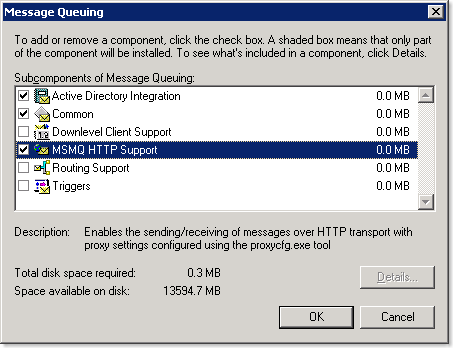
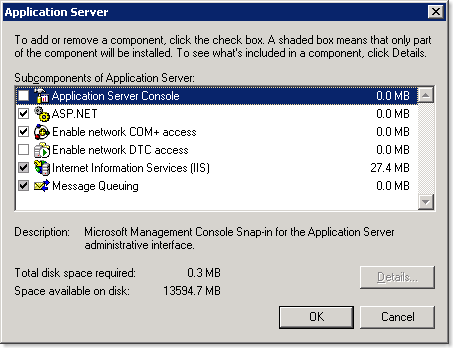
  • IIS (with ASP.NET)
  • Message Queuing (with MSMQ HTTP Support)
image

image 

Now that you have MSMQ installed, you'll need to configure the appropriate queues for the IdM Notification Service.  To create the queues follow these steps:

  1. In Administrative Tools, open the Computer Management console.
  2. Expand Services and Applications, and then expand Message Queuing.
  3. Right-click Private Queues, and select the option to create a new queue.
  4. Type the name as AccountProvisioning and then select the Transactional option.
  5. Do not change the other default options, and click OK.
  6. Repeat steps 3, 4, and 5 to create message queues called SelfServiceProvisioning and miisGroupManagement.

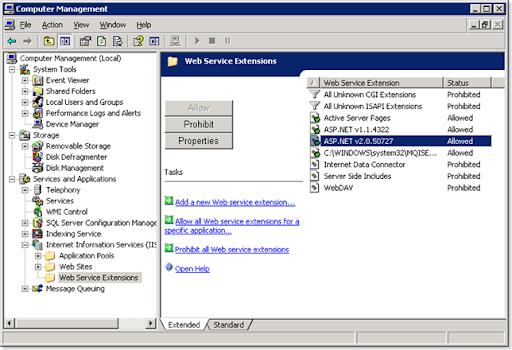
In IIS, under Web Service Extensions, ensure  ASP.NET 2.0.0xxx is listed and allowed. If you installed IIS after you installed the .NET 2.0 Framework, it likely won't be.  You can run the 'aspnet_regiis -i' command from %windir%\Microsoft.NET\Framework\v2.0.50727 to re-register it.
image

Preparing the IdM Notification Service

One of the components used by the Group Populator application is the IdM Notification Service (also included in the Microsoft Identity and Access Management Series).  The IdM Notification Service used some code provided by Microsoft called the Data Access Application Block for .NET v2 to simplify the accessing of SQL data from .NET code.  Unfortunately, it doesn't work for .NET 2.0.

Instead, download and install the Enterprise Library for .NET Framework 2.0 - January 2006.  After the install, go to Start - Microsoft patterns & practices - Enterprise Library - January 2006 and launch Build Enterprise Library.cmd.  This will compile all of the components within the Enterprise Library.

Now download and install the Microsoft Identity and Access Management Series.  Extract it and install the Identity and Access Management Tools and Templates.msi included within it.

So as not to alter the original code, copy the IdMNotificationSvc solution directory (under "Identity and Access Management Tools and Templates\Provisioning and Workflow") to a different location.  I prefer to keep all my ILM-related code together, so I copy it to my "ILM Projects" directory.

Open the IdMNotificationSvc solution in Visual Studio 2005, and allow it to convert it from .NET 2003 to .NET 2005.  Now you'll need to add a project reference to one of the .dlls from the Enterprise Library we compiled earlier.  Go to Project - Add Reference and browse to the Microsoft.Practices.EnterpriseLibrary.Data.dll (by default, located in the "\Program Files\Microsoft Enterprise Library January 2006\bin" directory).

Then, in SMTPmailer.cs, you must replace

using Microsoft.ApplicationBlocks.Data;

with

using Microsoft.Practices.EnterpriseLibrary.Data;

or it won't compile. Microsoft.ApplicationBlocks.Data was the old name, Microsoft.Practices.EnterpriseLibrary.Data is the new name.  If you want to clean it up even more, you can remove the reference for Microsoft.ApplicationBlocks.Data.  Then save and compile the solution.  As a side note, you may need to turn off the Explicit Option in the project unless you want to go through all of the code and add the Dim statements for every variable.

Now that the solution is built you must configure the compiled IdMNotificationSvc.exe to run as a service.  To do this, follow these steps:

  1. Open a command prompt and run the InstallUtil.exe to create the service.  Use the syntax: C:\<.NET Framework Installation Folder>InstallUtil <IdMNotificationSvc.exe build path>.  For example:

    C:\Windows\Microsoft.NET\Framework\v1.1.4322>InstallUtil C:\IdmNotificationSvc\bin\debug\IdMNotificationSvc.exe
  2. Type NET START IdMNotificationSvc to start the service.

Creating the Group Management Database

In my sample environment, SQL is installed on the same server as ILM.  You will need to execute this section on your SQL server, and the account running the script must have SQL admin rights in order to create a SQL database.

Browse to the "Identity and Access Management Tools and Templates\Provisioning and Workflow\GroupManagement\GroupManagementDB" directory.  For a remote SQL server, copy this directory locally.  Launch the CreateGroupPopulatorDB.cmd file.

Following the execution of the file, you should have and miisGroupManagement SQL database.  Since the script will create the DB in the default SQL location, you may need to move the database and log files to your desired locations.

Building the Group Management Website

Like the IdM Notification Service project, copy the miisGroupManagement solution directory (under "Identity and Access Management Tools\Provisioning and Workflow\GroupManagement") to a different location so as not to alter the original code.

Open the miisGroupManagement solution and allow Visual Studio 2005 to convert it.  You must also follow the post-conversion step of setting up the project as a web application.  Follow the directions given by Visual Studio after the conversion is complete.  Now you can compile the solution.  There should be no changes required to the code, but again, you may need to turn off the Explicit Option in the project unless you want to go through all of the code and add the Dim statements for every variable.

Now that the code is compiled, a virtual directory in IIS must be created for the web application.  Open the IIS administration console and under the default web site, start the wizard to create a new virtual directory and use the following settings:

  1. For the Alias, use miisGroupManagement.
  2. Use the directory of the miisGroupManagement solution.
  3. Allow the Read and Run Scripts permissions.

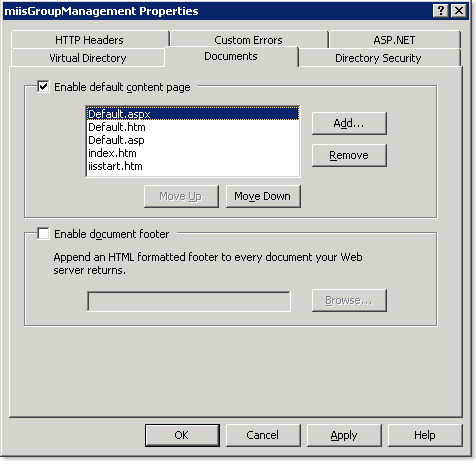
Once the wizard is done, open the Properties of the new virtual directory and configure the default page to be Default.aspx (on the Documents tab).
image

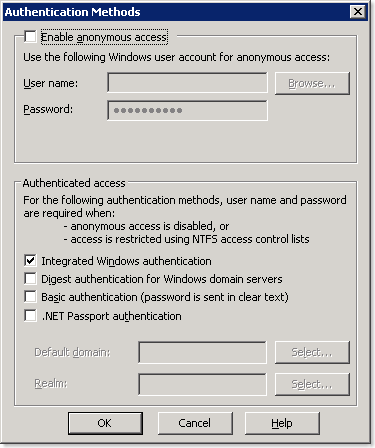
Now go to the Directory Security tab, and click Edit under Authentication and Access Control.  Disable anonymous access and enable Integrated Windows authentication.
image

As a side note, now would be a good time to take a look at the permissions of the miisGroupManagement solution directory and ensure you aren't allowing the wrong users to access this site.

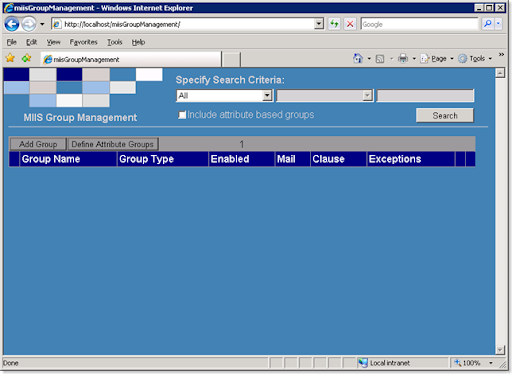
Test the website by browsing to http://localhost/miisGroupManagent from the ILM server, or substitute your server name in place of localhost to try it remotely.  You should see the following:
image

Building the Group Populator Application

Like the other projects, copy the GroupPopulator solution directory (under "Identity and Access Management Tools\Provisioning and Workflow\GroupManagement") to a different location so as not to alter the original code.

Open the GroupPopulator solution and allow Visual Studio 2005 to convert it.  There should be no changes required to the code, but again, you may need to turn off the Explicit Option in the project unless you want to go through all of the code and add the Dim statements for every variable.

Configuring ILM

Rather than regurgitate the fine documentation that is already out there for this, I will simply say that from the instructions provided here, you should now complete Task 4: Configuring the Metaverse for Groups and Task 5: Creating the New MA (under the Group Management section).

Putting it all Together

Now that you have configured the Group Management MA, you can start to add groups to the Group Management web application.  To update the membership of the groups according to the clause and any exceptions you defined, you must run the GroupPopulator.exe application (created when you compiled the Group Populator solution earlier).  As you can probably guess, the GroupPopulator.exe will need to be run regularly to update the group memberships based on any additions, deletes, or changes in the Metaverse.

Depending on how you plan on using the application, you will also need to configure your other MAs accordingly to support the management of groups.  If provisioning of groups will be done, you will also need to update your provisioning code.

That should get you going with the Group Populator application.  I hope this helps anyone who runs into the issues I had using the application with ILM 2007, Visual Studio 2005, and .NET 2.0.

Wednesday, September 12, 2007

ILM 2007 Password Management Collection

The ILM 2007 Password Management Collection is a set of documents that are designed to you through the Password Change Notification Service (PCNS) feature used by ILM 2007 to synchronize passwords from an authoritative Active Directory source to other connected data stores. The material presented is in a simplified environment that is designed to help the user become familiar with the PCNS feature included with ILM 2007 in a time efficient manner.

http://www.microsoft.com/downloads/details.aspx?familyid=ae09d2f5-8ac2-4769-ab6a-48fe35a25c63&displaylang=en&tm